This is a step-by-step guide to installing the HEX ezCAN R1200 LC (Generation 1 and Generation 2) on BMW R1200 LC & R1250 motorcycles.
IMPORTANT: This installation guide is only applicable to the BMW motorcycle models listed below.
If you are purchasing an ezCAN for, or installing an ezCAN on a BMW that is not in the model list below, refer to the ezCAN for BMW Installation Guides main page for the model on which you want to install an ezCAN.
The following bikes are supported:
Device and packaging (from April 2024 onward)
Device and packaging (prior to April 2024)
IMPORTANT: Generation I ezCANs are no longer in production. All ezCANs currently in production are Generation II.
Generation l 3-wire ezCAN (55mm / 2,2″ silver main body; white packaging carton):
Generation l 2-wire ezCAN (55mm / 2,2″ black main body; white packaging carton):
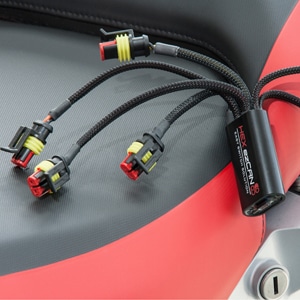
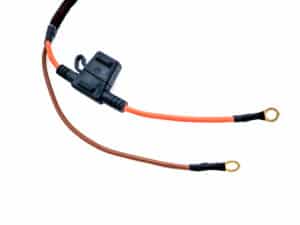
ezCAN installation kit contents (April 2024 onward):
ezCAN installation kit contents (prior to April 2024):
This is a good time to:
On BMW R1200 LC and R1250 models (K5x), the ezCAN is controlled through the bike’s RDC (tyre-pressure monitoring system) connector, whether or not the bike is equipped with the optional RDC system.
BMW R1200 LC and R1250 models have a number of important differences in terms of component placement and disassembly/re-assembly procedure.
Always follow the instructions in the drop-down for the correct model below.
Step 1: Locate the RDC connector
Remove the rider and pillion seats.
On earlier R1200GS LC and R1200GS Adventure LC models, the RDC connector is easily accessible under the pillion seat, in front of the tail light (lower portion, above).
Later R1200GS / GS Adventure LC models and all R1250GS / GS Adventure models are equipped with a lean-angle sensor. Connect the ezCAN to the RDC connector only (✅, above). Do not connect the ezCAN to the lean-angle sensor connector (X, right).
Step 2: Locate the vehicle battery
Remove the triangular black trim panel on the right side of the bike, below the fuel tank, to access the battery (below).
Step 1: Locate the RDC connector
If the top box is installed, remove the top box.
Remove the rider and pillion seats.
The RDC connector is located behind the pillion seat, under the topbox mounting rack (below).
Later-model R1200RT LCs and all R1250RTs are equipped with a lean-angle sensor. Connect the ezCAN to the RDC connector only (✅, below). Do not connect the ezCAN to the lean-angle sensor connector (X, below).
A typical view of the RDC connector is shown below.
Step 2: locate the vehicle battery
Remove the triangular black trim panel on the right side of the bike, below the fuel tank, to access the battery (below).
Step 1: Locate the RDC connector
Remove the rider and pillion seats.
The RDC connector is located under the pillion seat latch, between the rider and pillion seats (below).
A typical view of the RDC connector is shown below.
Step 2: Locate the vehicle battery
Remove the triangular black trim panel on the right side of the bike, below the fuel tank, to access the battery (below).
Step 1: Locate the RDC connector
Remove the rider and pillion seats.
The RDC connector is located under the pillion seat latch, between the rider and pillion seats (below).
A typical view of the RDC connector is shown below.
Step 2: Locate the vehicle battery
Remove the triangular black trim panel on the right side of the bike, below the fuel tank, to access the battery (below).
IMPORTANT: Do not connect the ezCAN’s CAN-bus connectors to any part of the motorcycle other than the RDC wiring harness connector and, if applicable, the RDC module. If you do, the ezCAN will not function.
In the case of BMW R1200 LC and R1250 models, it is generally advisable to install the main body of the ezCAN in close proximity to the location of the BMW RDC module or RDC resistor plug.
Ensure that all ezCAN wiring is routed safely and securely, in a way that does not allow it to chafe or pinch. Where needed, secure all wiring to frame tubes or other components using the cable ties supplied with the ezCAN installation kit.
Depending on whether your bike has the BMW RDC system fitted, the RDC connector will be seen in one of two configurations:
If your motorcycle does not have the BMW RDC system:
A resistor plug will be connected to the RDC connector.
If your motorcycle has the BMW RDC system:
The RDC connector will be plugged into the RDC module.
ezCAN cable routing may depend on a number of factors, including your personal preference.
Ensure that the wiring is routed safely and securely, in a way that does not allow it to chafe or pinch. Where needed, secure all wiring to frame tubes or other components using the cable ties supplied with the ezCAN installation kit.
WARNING: For safety reasons, always disconnect the negative battery terminal first, and re-connect it last.
Note: The HEX ezCAN’s status LED should be solid green for approximately a minute after connection to the battery. After this time, the ezCAN enters Sleep Mode, and there will be no LED activity until the bike’s ignition is switched ON.
The ezCAN installation kit includes four two-wire stub connectors with male connection terminals, orange power wires and black ground wires.
The following parts are also included:
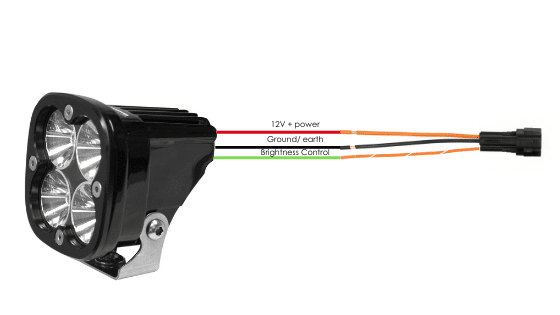
If the accessory to be connected to a power circuit has three wires, convert a two-wire stub connector to a three-wire connector as shown in the Connecting 3-wire LED lights section of the HEX ezCAN User Manual (downloadable from here).
If the accessory to be connected to a power circuit has two wires, seal the stub connector’s empty terminal cavity as shown in the Connecting 2-wire accessories section of the HEX ezCAN User Manual.
If any of the ezCAN’s power circuits will not be used, we recommend that you connect a blanking plug to the output plug of each unused circuit.
2-wire applications: insert a blanking seal.
3-wire applications: insert a PWM terminal wire.
Connect the male terminal of each stub connector to the relevant female ezCAN power circuit connector (below).
Connecting a 2-wire accessory to an ezCAN stub connector:
Connecting a 3-wire accessory to an ezCAN stub connector:
Connecting low-power smart accessories to an ezCAN stub connector:
If you are installing ‘smart’ accessories (that is, low-power accessories capable of intelligent input and control through the ezCAN’s LIN bus), note the following:
Read the Hex ezBUS and Configuring Hex ezBUS functionality sections of the ezCAN user manual (downloadable from here) for detailed information on how to use ezBUS functionality.
Note that if the white circuit is set to ezBUS mode, its fuse trip limit is set to 15 Amps by default. If needed, ezBUS PWR functionality can be used to increase the white circuit’s current capacity to a maximum of 30 Amps in ezBUS mode. See the relevant section of the ezCAN User Manual for details.
IMPORTANT: If the accessory stub connectors included in your ezCAN installation kit do not have orange power wires, but instead have colours that match the colouring of the ezCAN power circuits (as seen below), always connect like-to-like (red stub connector to red power circuit, blue stub connector to blue power circuit, and so on.)
The HEX ezCAN Extension Kit contains everything you need to connect front auxiliary lights, rear accessory lights and a horn to the ezCAN. It also includes additional connectors that allow you to connect other accessories.
WARNING: Test and check your installations and accessories in a safe, controlled environment before first use. Caution is advised at all times. Extra vigilance is needed when testing new features or accessories. You do so at your own risk.
DISCLAIMER: Hex Innovate is not liable for any injury or damage, howsoever caused, and all products and services are used at your own risk.
Before finalizing the ezCAN installation or re-installing any components you may have removed, it is important that you test all newly installed accessories for satisfactory fitment and correct operation.
Many ezCAN-powered accessories can be tested by switching the ignition ON and operating the relevant controls. Exceptions include:
Complete the ezCAN installation as follows:
You will now be redirected to our primary website to view our Privacy Policy
You will now be redirected to our primary website to view our Legal Information