Installing the ezCAN II for KTM and ezCAN Gobi for KTM

What is the difference between the ezCAN II for KTM, and the ezCAN Gobi for KTM?

In the past, HEX Innovate offered two different ezCAN Accessory Managers for KTM motorcycles:

  • The HEX ezCAN Gobi, designed specifically for newer KTM models.
  • The HEX ezCAN II for KTM, designed specifically for earlier KTM models.

These two ezCANs used different CAN-bus connectors to interface with the motorcycle’s CAN-bus.

In February 2025, HEX Innovate introduced the HEX ezCAN JWPF-to-HMS Adapter Cable, allowing the ezCAN Gobi to interface with all earlier KTM models previously covered by the ezCAN II for KTM. As a result, the ezCAN Gobi for KTM has replaced the ezCAN II for KTM.

KTM MODEL COMPATIBILITY

This is a step-by-step guide to installing the HEX ezCAN Gobi on compatible KTM models.

If you are unsure whether your KTM is compatible with the ezCAN II for KTM or ezCAN Gobi for KTM, two options are available:

  • Enter your KTM motorcycle’s VIN into our VIN Decoder.
  • Read the ezCAN/KTM compatibility information below.

HEX ezCAN II for KTM

The discontinued HEX ezCAN II for KTM supports the following KTM models equipped with the white HMS-type diagnostic connector:

  • All 1290 models (up to 2020)
  • All 1190 models
  • All 1090 models
  • All 1050 models
  • All 790 models (partial support)

The HMS-type diagnostic connector used on earlier KTM models looks like this:

Due to the wiring harness limitations of KTM 790 models, these models have the following functionality restrictions:

  • Auxiliary brake lights activate on front brake usage only.
  • Front auxiliary lights cannot be toggled on and off using the bike’s handlebar-mounted controls. For workarounds and auxiliary light hardware control options, refer to the Operating auxiliary front lights section of the ezCAN User Manual. Download the manual from this page.
  • ezCAN functionality that depends on turn signals is not available.
  • ezCAN functionality that switches off or flashes auxiliary front lights on turn signal activation is not available.
  • Support for Run/Brake/Turn signal functionality is not available.
  • Support for heated gear is not available.
  • 1x HEX ezCAN device
  • 1x MicroUSB to USB A and C cable
  • 2x Velcro strips
  • 2x blanking plugs
  • 4x cable ties
  • 4x 2-wire stub connectors (Black/Orange wiring)
  • 4x 1-wire terminal wires (Orange)
  • 4x rubber blanking seals
  • 1x green horn harness
  • 1x piggyback terminal

HEX ezCAN Gobi for KTM

The current HEX ezCAN Gobi for KTM supports the following KTM models equipped with the red Euro 5-type diagnostic connector:

  • All 1290 models from 2021 onward
  • All 890 models (partial support)
  • All 790 models (partial support)

If the JWPF-to-Euro 5 adaptor included in the ezCAN installation kit is replaced by a Hex JWPF-to-HMS adaptor, the ezCAN Gobi for KTM also supports the following KTM models:

  • All 1290 models up to 2020
  • All 1190 models
  • All 1090 models
  • All 1050 models
  • All 790 models equipped with HMS-type diagnostic connector (partial support)

The Euro 5-type diagnostic connector used on later KTM models looks like this:

For information on how to use the ezCAN Gobi on HMS connector-equipped KTMS, see Using the HEX ezCAN Gobi on earlier KTM models below.

In February 2025, HEX Innovate launched the HEX ezCAN JWPF-to-HMS Adaptor Cable (below). This adapter cable allows the ezCAN Gobi for KTM to support all earlier KTM models previously supported by the ezCAN II for KTM.

To use an ezCAN Gobi for KTM on any earlier KTM model equipped with a white HMS-type diagnostic connector, do the steps that follow:

  1. Unplug the JWPF-to-Euro5 adaptor cable from the ezCAN Gobi (below). 
  2. Connect the JWPF-to-HMS adaptor cable to the ezCAN Gobi (below).

Due to the wiring harness limitations of KTM 790 and 890 models, these models have the following functionality restrictions:

  • Auxiliary brake lights activate on front brake usage only.
  • Front auxiliary lights cannot be toggled on and off using the bike’s handlebar-mounted controls. For workarounds and auxiliary light hardware control options, refer to the Operating auxiliary front lights section of the ezCAN User Manual. Download the manual from this page.
  • ezCAN functionality that depends on turn signals is not available.
  • ezCAN functionality that switches off or flashes auxiliary front lights on turn signal activation is not available.
  • Support for Run/Brake/Turn signal functionality is not available.
  • Support for heated gear is not available.

ezCAN installation kit contents:

  • 1x HEX ezCAN Device
  • 1x MicroUSB to USB A and C cable
  • 3x blanking plugs
  • 20x cable ties
  • 4x 2-wire stub connectors (Black/Orange wiring)
  • 4x 1-wire terminal wires (Orange)
  • 4x rubber blanking seals

STAP 1:

DE SOFTWARE DOWNLOADEN, INSTALLEREN EN CONFIGUREREN

This is a good time to:

  • Unbox the ezCAN.
  • Decide what and how many accessories you will be installing, and their requirements. Must some accessories be connected in a specific manner and/or to specific power circuits? As an example, low-powered ‘smart’ accessories must typically be installed on the ezBUS (White) power circuit.
  • Read the Installing for Life section of the ezCAN User Manual (downloadable from here), and evaluate your planned installation according to the guidelines in that section.
  • Register your ezCAN (All you need to do to register the ezCAN is connect it to your computer using the supplied USB cable, meaning you can do it at the comfort of your desk.)

STAP 2:

LOCATE THE DIAGNOSTIC CONNECTOR AND BATTERY

In most cases, the battery and diagnostic connector are located under a seat, or forward of a seat.
In case of difficulty, refer to your motorcycle’s user manual for exact component locations.

Step 2A: Locate the diagnostic connector and battery

Refer to the relevant sub-section below.

The diagnostic connector and battery are located under the front seat or one-piece seat.

The diagnostic connector and battery are located under the centre trim panel, forward of the front seat.

The diagnostic connector and battery are located under the rear seat.

Step 2B: Locate the horn

On most models, the factory horn is located below the headlight, or below the front fairing.
In case of difficulty, refer to your motorcycle’s user manual for exact component locations.

STAP 3:

steek de ezCAN in de CAN-BUS

IMPORTANT: Do not connect the ezCAN’s CAN-bus connector to any part of the motorcycle other than the diagnostic connector. If you do, the ezCAN will not function.

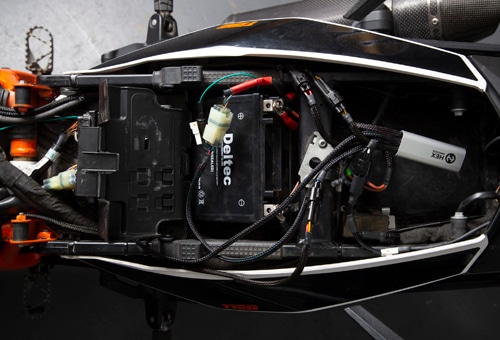
  1. Install the main body of the ezCAN in the vicinity of the bike’s diagnostic connector. In the example on the right, the main body has been installed under the rear part of the seat.
  2. Remove the protective cap from the bike’s diagnostic connector.
  3. Connect the correct diagnostic connector adaptor cable to the ezCAN as follows:
    • If your motorcycle has a red Euro 5 diagnostic connector, plug the JWPF-to-Euro 5 adaptor cable into the ezCAN’s male JWPF connector.
    • If your motorcycle has a white HMS diagnostic connector, plug the JWPF-to-HMS adaptor cable into the ezCAN’s male JWPF connector.
  4. Connect the ezCAN’s Euro 5 plug or HMS plug to the motorcycle’s diagnostic connector.

STAP 4:

CONNECT THE ezCAN TO THE BIKE'S BATTERY

ezCAN cable routing may depend on a number of factors, including your personal preference.

Ensure that the wiring is routed safely and securely, in a way that does not allow it to chafe or pinch. Where needed, secure all wiring to frame tubes or other components using the cable ties supplied with the ezCAN installation kit.

WARNING: For safety reasons, always disconnect the negative battery terminal first, and re-connect it last. 

  1. Start the installation by locating the main body of the ezCAN in a place that allows straightforward, logical wiring runs. We recommend installing the ezCAN main body under a seat, in the vicinity of the diagnostic connector, as this allows easier access for firmware updates and diagnostics.
  2. Disconnect the negative wiring harness terminal from the negative battery pole.
  3. Disconnect the positive wiring harness terminal from the positive battery pole.
  4. Route the ezCAN power supply cables to the battery.
  5. Connect the terminal on the orange ezCAN power cable, and the bike’s positive wiring harness terminal, to the positive battery pole.
  6. Connect the terminal on the brown ezCAN power cable, and the bike’s negative wiring harness terminal, to the negative battery pole.
  7. Tidy the CAN-bus and battery cable routing. Secure all loose cables using the cable ties included in the ezCAN installation kit, making sure you have easy access to the four power circuit plugs.


Note:
 The HEX ezCAN’s status LED should be solid green for approximately a minute after connection to the battery. After this time, the ezCAN enters Sleep Mode, and there will be no LED activity until the bike’s ignition is switched ON.

STAP 5:

CONNECT THE HORN TRIGGER WIRE

The CAN-bus on compatible KTM models does not include a horn trigger signal. To be able to activate an accessory horn when the horn button is pressed, a separate horn trigger input to the ezCAN is needed.

IMPORTANT: Even if you do not want to install an auxiliary horn on a compatible KTM, the green horn trigger wire included in the ezCAN installation kit must be installed if you will be configuring front auxiliary lights to strobe on horn activation.

Enabling accessory horn triggering

  1. Locate the factory KTM horn on your bike (See Step 2B above).
  2. Be aware of the following regarding factory KTM horns:
    • KTM horns usually have two male spade terminals.
    • KTM wiring harnesses connect to the horn either through two separate female spade terminals (left, below), or through an integrated plastic connector (right, below).
    • The colours of the factory KTM horn wires are usually either:
      • Grey and yellow with blue tracer, or
      • Grey and brown (as used in the example above).

  1. Do the following with the green ezCAN horn trigger lead included in the ezCAN installation kit (below):
    • Connect the male single-pin plug (left connector) to the single-pin female terminal leading from the main body of the ezCAN.
    • Connect the male+female spade connector (right connector) to the factory KTM horn as shown below.

If the factory horn harness has separate female spade terminals:

  1. Disconnect the KTM horn harness female spade terminal with the grey wire from the factory horn (below).

2. Connect the ezCAN horn trigger lead’s male+female spade terminal to the exposed male terminal on the horn (below).

3. Connect the KTM horn harness female spade terminal with the grey wire to the exposed male terminal on the ezCAN horn trigger lead (below).

If the factory horn harness has an integrated plastic connector:

  1. Make a note of the factory wire-colour-to-terminal assignments on the KTM horn.
  2. Disconnect the KTM’s integrated horn harness connector from the horn (below).

3. Connect the ezCAN horn trigger lead’s male+female spade terminal to the exposed male horn terminal that the grey wire was connected to (below).

4. Connect the standalone male+female spade terminal supplied in the ezCAN installation kit to the remaining exposed male terminal on the horn, making sure both exposed male terminals are facing in the same direction (below).

5. Connect the KTM’s integrated horn harness connector to the exposed male terminals (below). The green ezCAN horn trigger lead and the grey KTM horn harness wire must be connected to the same male terminal.

Completing the horn trigger wire installation

  1. If you want to install an accessory horn, connect the accessory horn to a two-pin ezCAN stub connector (see Step 7). The stub connector will be plugged into an ezCAN power circuit of your choice.
  2. If the factory horn and/or accessory horn do not work when the bike’s horn button is pressed, see Testing the horn connection below.

Testing the horn connection

If the factory horn and/or the accessory horn do not work when the bike’s horn button is pressed, diagnose the horn circuit by doing the steps that follow:

  1. Connect the ezCAN to your computer.
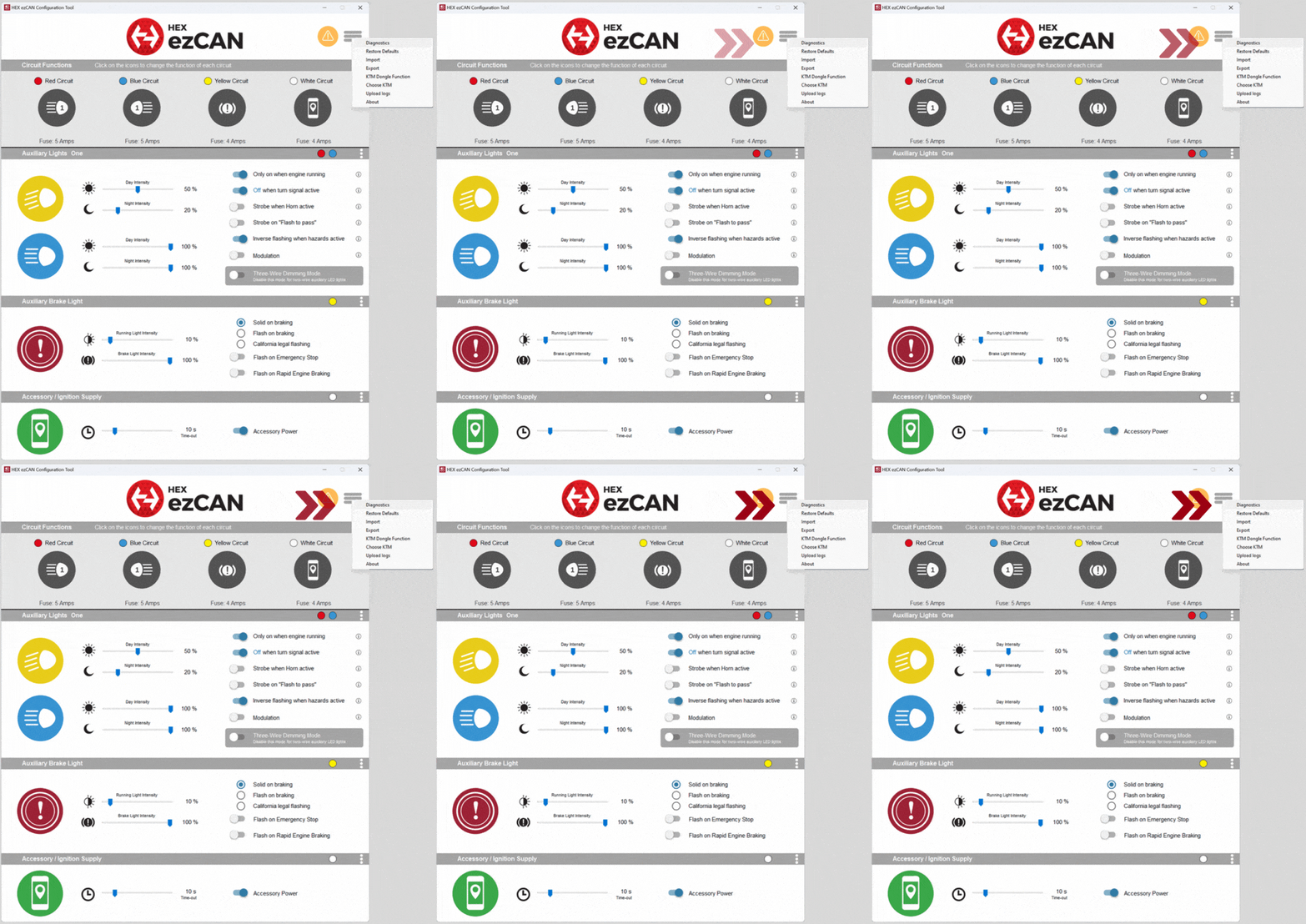
  2. Launch the ezCAN configuration software.
  3. Switch the motorcycle’s ignition ON.
  4. Click the hamburger icon in the upper right corner of the HEX ezCAN Configuration Tool, then click Diagnostics (below, left).
    • The Diagnostics window will be shown (below, right).

5. Read the Horn Input Voltage value (below, right). If the ezCAN horn trigger circuit is working correctly, the value should be at or near 0V when the horn is inactive, and approximately 12V when the horn is active.

STAP 6:

HEX UP-DOWN Switch for auxiliary front light control

If a discontinued ezCAN II for KTM is installed on any ezCAN-compatible KTM model other than a 2021-onward 1290, the brightness of the bike’s auxiliary front lights can be adjusted with the ezCAN configuration software, or with the optional Hex UP-DOWN Switch. 

Note that on all KTM 1290 models manufactured from 2021 onward, the brightness of auxiliary front lights can be adjusted using the bike’s left-side handlebar controls. The Hex UP-DOWN Switch cannot be used on these models.

IMPORTANT:

  • This step is optional.
  • The Hex UP-DOWN Switch is only compatible with the discontinued ezCAN II for KTM. The Hex UP-DOWN Switch is not compatible with the ezCAN Gobi for KTM, or with any other ezCAN.
 
If you have purchased an optional Hex UP-DOWN Switch, install the switch by doing the steps that follow:
  1. Install the switch on your bike’s handlebar using the hardware provided in the switch installation kit (upper image, right).
  2. Route the white female JWPF connector on the Hex UP-DOWN Switch to the main body of the ezCAN along an existing handlebar wiring run.
  3. Connect the white female JWPF connector on the switch to the white male JWPF connector on the ezCAN II for KTM.

STAP 7:

CONNECT THE ACCESSORIES, USING COLOUR CODING

The ezCAN installation kit includes four two-wire stub connectors with male connection terminals, orange power wires and black ground wires.

The following parts are also included:

  • 4x pulse-width modulation (PWM) terminal wires (orange with white tracer)
  • 4x rubber blanking seals

Connecting 3-wire accessories:
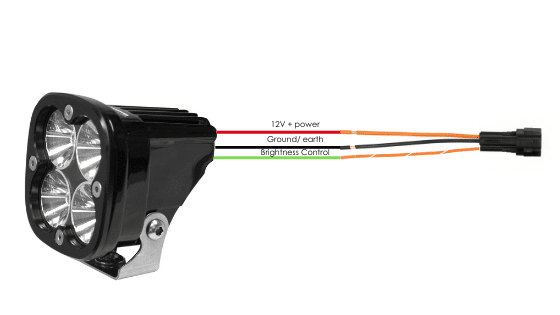
If the accessory to be connected to a power circuit has three wires, convert a two-wire stub connector to a three-wire connector as shown in the Connecting 3-wire LED lights section of the HEX ezCAN User Manual (downloadable from here).

Connecting 2-wire accessories:
If the accessory to be connected to a power circuit has two wires, seal the stub connector’s empty terminal cavity as shown in the Connecting 2-wire accessories section of the HEX ezCAN User Manual.

Unused power circuits:
If any of the ezCAN’s power circuits will not be used, we recommend that you connect a blanking plug to the output plug of each unused circuit.

2-wire applications: insert a blanking seal.
3-wire applications: insert a PWM terminal wire.

4x terminal wires and blanking seals
4x 2-wire stub connectors

Connect the male terminal of each stub connector to the relevant female ezCAN power circuit connector (right).

Connecting a 2-wire accessory to an ezCAN stub connector:

  1. Connect the accessory’s ground/Earth wire (this is usually, but not always black or brown) to the ground wire of an ezCAN stub connector.
  2. Connect the accessory’s power wire (this is usually, but not always red) to the 12V power wire of an ezCAN stub connector.


Connecting a 3-wire accessory to an ezCAN stub connector:

  1. Connect the accessory’s ground/Earth wire and power wire as described above.
  2. Connect the accessory’s PWM control wire to the dual-colour (solid colour+tracer) wire of an ezCAN stub connector.


Connecting low-power smart accessories to a power circuit:

If you are installing ‘smart’ accessories (that is, low-power accessories capable of intelligent input and control through the ezCAN’s LIN bus), note the following:

  1. Smart accessories (including the HEX ezSWITCH) must only be connected to the ezCAN’s ezBUS (white) power circuit. Smart accessories will not work properly if connected to the red, yellow or blue circuits.
  2. The ezBUS (white) power circuit can accommodate any odd or even number of individual accessories, to a maximum of fifteen.
  3. A selection of HEX ezBUS adaptors and connectors is available, allowing you to connect smart accessories quickly and easily. See the ezBUS Accessories section of the Hex Innovate online store for details.


Read the Hex ezBUS and Configuring Hex ezBUS functionality sections of the ezCAN user manual (downloadable from here) for detailed information on how to use ezBUS functionality.

Note that if the white circuit is set to ezBUS mode, its fuse trip limit is set to 15 Amps by default. If needed, ezBUS PWR functionality can be used to increase the white circuit’s current capacity to a maximum of 30 Amps in ezBUS mode. See the relevant section of the ezCAN User Manual for details.

IMPORTANT: If the stub connectors included in your ezCAN installation kit do not have orange power wires, but instead have colours that match the colouring of the ezCAN power circuits (as seen above), always connect like-to-like (red stub connector to red power circuit, blue stub connector to blue power circuit, and so on.)

EASIER INSTALLATION WITH THE ezCAN EXTENSION KIT

The HEX ezCAN Extension Kit contains everything you need to connect front auxiliary lights, rear accessory lights and a horn to the ezCAN. It also includes additional connectors that allow you to connect other accessories.

U kunt hier de verlengkabelset kopen.

The ezCAN Extension Kit

  • 2x 1.5m 3-core extension cables (typically used for 2-wire or 3-wire front auxiliary lights)
  • 1x 0.5m 3-core extension cable (typically used for a rear running/brake light)
  • 1x 1.5m 2-core extension cable, with spade connectors (typically used to connect air horns or other 2-wire accessories)
  • 3x female MT-3 connectors, including terminal pins and terminal seals
  • 5x male MT-3 connector kit, including terminal pins and terminal seals
  • 5x rubber blanking seals (used in cases where only two terminals are used in a 3-wire MT-3 connector)
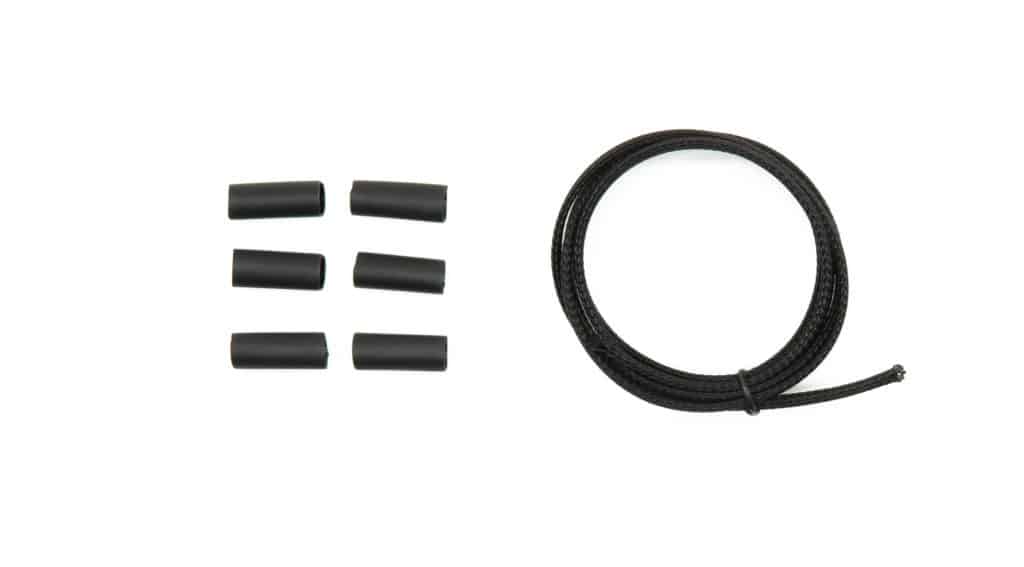
  • 6x 20mm sections of adhesive-lined heat-shrink tubing
  • 2x 6.3mm female spade connector terminals
  • 1m cable sheathing
Verlengstukken voor hulplampen
Hoornverlenging
Lijm gevoerde warmte krimpen & 1m omhulling
Rem-/accessoireverlenging

STAP 8:

TEST DE INSTALLATIE

WARNING: Test and check your installations and accessories in a safe, controlled environment before first use. Caution is advised at all times. Extra vigilance is needed when testing new features or accessories. You do so at your own risk.

DISCLAIMER: Hex Innovate is not liable for any injury or damage, howsoever caused, and all products and services are used at your own risk.

Before finalizing the ezCAN installation or re-installing any components you may have removed, it is important that you test all newly installed accessories for satisfactory fitment and correct operation.

Many ezCAN-powered accessories can be tested by switching the ignition ON and operating the relevant controls. Exceptions include:

  • Accessories for which you have enabled the Only on when engine running feature (examples may include Aux 1 lights, Aux 2 lights, MotoLights, and heated clothing). To test these functions, the bike’s engine must be running.
  • Some brake light functions require that the bike be moving at or above a certain speed. As examples, Flash on Emergency Stop and Flash on Rapid Engine Braking functions require deceleration of more than 21 Kilometres per hour per second.

STAP 9:

VOLTOOI DE INSTALLATIE

Complete the ezCAN installation as follows:

  1. Make sure the main body of the ezCAN is well-secured in a place where it is protected from pressure, heat and impact.
  2. Make sure all factory, ezCAN and accessory cables and wiring harnesses are well clear of all moving parts, and securely fastened. Where needed, use the cable ties included in the ezCAN installation kit.
  3. Replace all motorcycle components and fasteners that may have been removed to facilitate the ezCAN installation.
  4. Inspect the complete installation for mistakes or problems, and fix all problems that you have noted.
  5. Test all new accessories for correct operation a second time.
  6. If you have not already done so, download the ezCAN user manual from this page.
  7. Keep the manual in a safe place on your computer, tablet or phone: it contains all the information you need to operate the ezCAN and adjust its functionality.

Let op !

U wordt nu doorverwezen naar onze primaire website om ons Privacybeleid te bekijken.

Let op !

U wordt nu doorverwezen naar onze primaire website om onze juridische informatie te bekijken.

Let op !

U wordt nu doorverwezen naar onze primaire website om onze juridische informatie te bekijken.